How to Add Live Captions to a Phone IRL Stream in OBS
Add burned-in English or Finnish live captions to a phone IRL stream, verify them in OBS, and understand accuracy, privacy, and platform limits.
By VISP Team ·
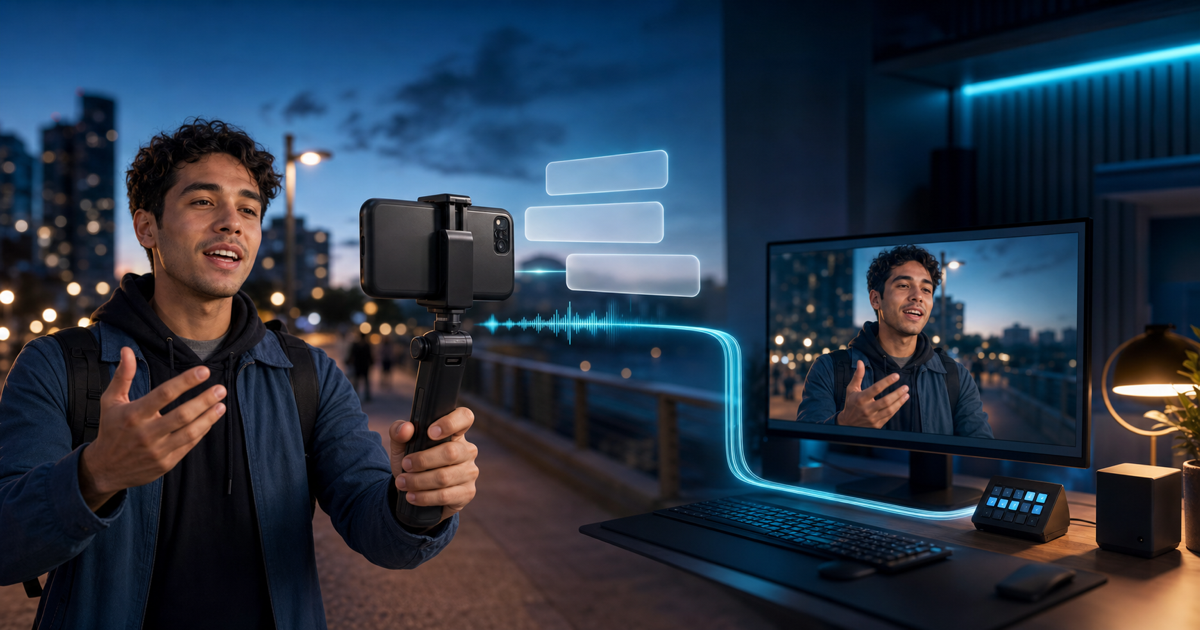
The simplest way to add live captions to a phone IRL stream is to open the VISP app settings, select English or Suomi under Audio → Subtitles, start the phone stream, and confirm the words inside the phone source in OBS. VISP turns the microphone speech into text on the phone and composites that text into the outgoing camera picture before OBS receives it.
That last detail matters: these are burned-in captions. They are visible to everyone who sees that camera source, including Twitch or Kick viewers and the resulting VOD. Viewers cannot turn them off. This guide explains when that is the right tradeoff, how to test it, and when an optional OBS- or platform-caption workflow is a better fit.
'/%3e%3ccircle%20cx='174'%20cy='180'%20r='118'%20fill='%2317354b'%20opacity='.45'/%3e%3ccircle%20cx='1452'%20cy='760'%20r='176'%20fill='%23123f51'%20opacity='.38'/%3e%3cpath%20d='M455%20450H665M875%20450H1085M1330%20450H1450'%20fill='none'%20stroke='%2342d5ff'%20stroke-width='14'%20stroke-linecap='round'%20marker-end='url(%23arrow)'%20filter='url(%23glow)'/%3e%3cg%20transform='translate(100%20165)'%3e%3crect%20x='0'%20y='0'%20width='355'%20height='570'%20rx='54'%20fill='url(%23phone)'%20stroke='%236ee4ff'%20stroke-width='6'/%3e%3crect%20x='25'%20y='53'%20width='305'%20height='462'%20rx='28'%20fill='url(%23screen)'/%3e%3crect%20x='129'%20y='20'%20width='98'%20height='12'%20rx='6'%20fill='%23688497'/%3e%3ccircle%20cx='178'%20cy='544'%20r='12'%20fill='%23688497'/%3e%3ccircle%20cx='178'%20cy='226'%20r='77'%20fill='%23d79b72'/%3e%3cpath%20d='M87%20417c20-93%2067-137%2091-137s73%2044%2091%20137'%20fill='%23172b3a'/%3e%3cpath%20d='M122%20225c16-67%20102-69%20115%200-20-23-94-23-115%200Z'%20fill='%2310202c'/%3e%3cg%20fill='%23e8fbff'%20stroke='%238feaff'%20stroke-width='3'%3e%3crect%20x='60'%20y='342'%20width='235'%20height='47'%20rx='18'%20opacity='.93'/%3e%3crect%20x='82'%20y='402'%20width='191'%20height='47'%20rx='18'%20opacity='.83'/%3e%3c/g%3e%3c/g%3e%3cg%20transform='translate(520%20286)'%20fill='none'%20stroke='%236ee4ff'%20stroke-width='11'%20stroke-linecap='round'%3e%3cpath%20d='M0%20164h25l15-50%2024%20105%2024-152%2028%20202%2025-155%2024%20105%2023-55h30'/%3e%3c/g%3e%3cg%20transform='translate(665%20270)'%3e%3cpath%20d='M105%200%20210%2058v244l-105%2060L0%20302V58Z'%20fill='%23153b4c'%20stroke='%236ee4ff'%20stroke-width='7'/%3e%3cpath%20d='m0%2058%20105%2061%20105-61M105%20119v243'%20fill='none'%20stroke='%2342d5ff'%20stroke-width='6'%20opacity='.8'/%3e%3ccircle%20cx='105'%20cy='182'%20r='30'%20fill='%2342d5ff'%20opacity='.9'%20filter='url(%23glow)'/%3e%3c/g%3e%3cg%20transform='translate(1085%20220)'%3e%3crect%20x='0'%20y='0'%20width='305'%20height='390'%20rx='28'%20fill='%230a151f'%20stroke='%236ee4ff'%20stroke-width='7'/%3e%3crect%20x='27'%20y='28'%20width='251'%20height='303'%20rx='15'%20fill='url(%23screen)'/%3e%3crect%20x='112'%20y='390'%20width='82'%20height='65'%20rx='10'%20fill='%23274357'/%3e%3crect%20x='65'%20y='448'%20width='176'%20height='23'%20rx='11'%20fill='%2338566a'/%3e%3ccircle%20cx='153'%20cy='166'%20r='53'%20fill='%23d79b72'/%3e%3cpath%20d='M75%20305c15-66%2054-98%2078-98s64%2032%2078%2098'%20fill='%23172b3a'/%3e%3cpath%20d='M113%20165c11-46%2070-48%2080%200-16-16-66-16-80%200Z'%20fill='%2310202c'/%3e%3cg%20fill='%23e8fbff'%20stroke='%238feaff'%20stroke-width='2'%3e%3crect%20x='60'%20y='246'%20width='186'%20height='34'%20rx='13'%20opacity='.93'/%3e%3crect%20x='78'%20y='288'%20width='150'%20height='29'%20rx='12'%20opacity='.8'/%3e%3c/g%3e%3c/g%3e%3cg%20transform='translate(1450%20355)'%3e%3ccircle%20cx='52'%20cy='0'%20r='50'%20fill='%2342d5ff'%20opacity='.9'%20filter='url(%23glow)'/%3e%3ccircle%20cx='52'%20cy='190'%20r='50'%20fill='%2358e3a1'%20opacity='.9'%20filter='url(%23glow)'/%3e%3c/g%3e%3c/svg%3e)
Burned-in captions or optional closed captions?
Creators often use “captions,” “subtitles,” and “closed captions” for the same visible text, but the delivery method changes what viewers can control.
| Goal | Better starting point | Main tradeoff |
|---|---|---|
| Put readable speech text on the remote phone camera with no extra OBS source | VISP burned-in subtitles | Works as part of the picture, but viewers cannot hide it |
| Let Twitch viewers enable or disable a caption track | A caption tool that sends supported caption data with the final broadcast | More flexible for viewers, but it belongs at the final encoder and must be tested separately |
| Caption the complete show, including studio microphones and clips | An OBS-side caption workflow | Covers more than the phone, but requires another production component |
| Create a clean recording for later editing | Record without burned-in text and caption in post | Best editing flexibility, but no live text for viewers |
Twitch’s official player API distinguishes a caption track from the picture: captions can be enabled only when the video content includes caption data. See the Twitch Video & Clips player reference. VISP’s phone subtitles are different. They become pixels in the camera feed, so neither the Twitch nor Kick player needs to understand a separate caption format.
Burned-in text is useful when you want the remote-camera source to remain self-contained. It also works in an OBS recording, a picture-in-picture scene, and clips made from the finished program. The cost is permanent placement: if the words cover a face, product, map, or lower-third, the producer cannot recover those pixels later.
What you need
- The VISP native app on a supported iPhone or Android phone
- A working phone-to-OBS source, set up with How to Use Your Phone as a Remote Camera in OBS
- A selected microphone and permission to use speech recognition
- English or Finnish speech for the current subtitle choices
- Headphones at the OBS desk so the producer can judge the phone audio and text together
- A private rehearsal recording with the same environment, microphone, and movement planned for the real stream
The phone still contributes one H.264/AAC feed to the home studio. OBS owns the scenes, recording, and final Twitch or Kick destination. Enabling subtitles does not move the platform stream key to the phone.
1. Choose the spoken language before going live
Open the VISP app settings and find the Audio section. Under Subtitles, choose English, Suomi, or Off. Select the language being spoken, not the interface language and not the language you wish the text to become.
The current feature transcribes; it does not translate. An English selection will not turn Finnish speech into English captions, and a Finnish selection will not translate English. Mixed-language conversations, usernames, place names, abbreviations, and specialist vocabulary may be recognized unreliably. Choose the dominant spoken language and test the exact names that matter to the stream.
On first use, the operating system may request speech-recognition access. On
iPhone, Apple documents that SFSpeechRecognizer requires authorization and
that availability varies by language and service. Apple also notes that some
languages may require a network connection; its
supportsOnDeviceRecognition reference
is the definitive device check. VISP asks iOS to keep recognition on the
device when the selected recognizer supports it.
Android uses the phone’s configured speech-recognition service. The official
Android SpeechRecognizer reference
warns that an implementation may send audio to remote servers and that the
API is not intended as a guaranteed continuous offline recognizer. In other
words, do not assume identical accuracy, privacy, battery use, or offline
behavior across Android models. A full-duration device test is more useful
than a one-sentence check beside reliable Wi-Fi.
2. Start the phone stream and keep VISP active
VISP starts caption recognition only during an active publishing session. Use this order:
- Select the subtitle language while the stream is stopped.
- Confirm the intended microphone under Audio → Microphone.
- Start the phone stream.
- Speak one short, ordinary sentence at the real working distance.
- Wait for the partial words to settle before judging the final line.
- Stop the stream and confirm the caption disappears.
Keep the VISP app in the foreground when captions matter. The current app pauses its speech features when it is not active, even on an iPhone that can keep the camera stream running in Picture in Picture. Switching to maps, messages, or another app can therefore leave the video live without updating the subtitle line.
Plan the field workflow around that boundary. Use a second device for maps or private messages, or let the home producer handle information that would otherwise require leaving VISP. If the operator must switch apps, tell the producer before assuming the last visible caption is still current.
3. Verify the captions in OBS, not only on the phone
Recognition happens on the phone, and the resulting text is rendered into the same video composition that the phone encodes. The VISP relay then forwards that contribution to the OBS Media Source. OBS does not receive a separate text source, subtitle file, or caption-control channel.
This makes the first check easy: if the text is not visible in the phone source inside OBS, it will not magically appear at Twitch or Kick. Confirm all of the following in the OBS preview and in a local recording:
- the caption appears over the correct phone source;
- the words remain readable against both bright and dark backgrounds;
- the line does not cover a face, safety information, or an OBS lower-third;
- the spoken audio reaches OBS at the same time as the corresponding text;
- scene crops and picture-in-picture layouts do not cut off the caption; and
- the text changes between phrases in an understandable way and clears when subtitles or the stream stop.
OBS’s official SRT guide documents receiving SRT in a Media Source. With VISP, the generated source or OBS plugin supplies the authenticated URL; the caption is already inside the decoded video. Do not add a second copy of the same words in OBS unless the creative plan deliberately calls for two caption layers.
If the audio is silent, doubled, or delayed before captions are even considered, fix that path first with How to Fix Phone Camera Audio in OBS. Speech recognition cannot repair a bad microphone signal.
4. Decide whether the normal or hosted recognizer fits
The standard subtitle choice uses the phone’s speech service. That is the smallest setup and should be the first test. Its result depends on the device, installed language support, operating-system service, network state, voice, and acoustic environment.
Some accounts may also show Better subtitles. This is optional and feature-gated; do not build a production plan around the switch unless it is actually visible on the phone. When enabled, VISP converts microphone audio to a small 16 kHz mono stream, obtains a single-use token from the VISP server, and sends the audio to ElevenLabs Scribe v2 Realtime for partial and committed transcripts. ElevenLabs documents that client-side realtime transcription uses a WebSocket and a single-use token so the service API key does not need to be exposed to the phone. See its official client-side streaming guide.
Hosted recognition adds another network dependency and consumes upload bandwidth. It also sends spoken audio to a third-party processor. Treat that as a privacy and consent decision, not merely a quality switch. Review the current service terms and your event rules before enabling it around guests or bystanders. If hosted recognition fails, do not assume the on-screen text will remain accurate; watch the OBS source and have a plan to turn subtitles off.
Do not choose between the modes from a feature label. Record the same two-minute script in the real location using both available choices, then compare names, background noise, delay, dropped phrases, and network behavior.
5. Make the microphone easier to understand
Caption quality starts with speech quality. A recognizer cannot reliably recover a quiet voice hidden under traffic, wind, music, or several people speaking at once.
Place the microphone close to the speaker and protect it from wind. Avoid pointing the phone microphone toward a loud PA system. Ask one person to speak at a time when accurate captions are important. Use short sentences and leave natural pauses so partial text has time to settle.
On supported iPhones, VISP also exposes audio isolation. Test it separately: noise reduction can help a voice, but any processing can change tone or add delay. Never enable a new microphone, isolation mode, and caption mode at the same time five minutes before going live. Change one element, make an OBS recording, and listen as well as read.
Caption text is not a substitute for clean audio. Some viewers rely on the audio, some on captions, and some on both. Preserve both paths instead of muting an understandable microphone because the test sentence happened to transcribe correctly.
How the phone-to-OBS caption path works
The complete flow is deliberately short:
- The selected phone microphone feeds the live camera session.
- VISP sends the speech audio to the selected device or hosted recognizer.
- Partial and committed text update a caption overlay on the phone.
- The phone composites that overlay with the camera frames.
- The phone encodes one H.264/AAC contribution and publishes it over SRT.
- The VISP relay authenticates and forwards the contribution to OBS.
- OBS places that already-captioned source in the final Twitch or Kick scene.
In this phone-to-OBS path, VISP does not transcode the contribution and does not bond network connections. Its optional dual-link redundancy sends duplicate SRT packets over Wi-Fi and cellular; it does not combine their capacity. Captions and hosted recognition also cannot create bandwidth when the route is congested.
Because the text is composed before the relay, reconnecting the same phone source preserves the caption design without an OBS-side caption plugin. The same architecture is also why OBS cannot remove or restyle the text later.
Run a caption preflight
Use one short rehearsal that can fail safely:
- Select English or Suomi and approve speech access.
- Choose the real microphone, camera, resolution, and frame rate.
- Start a private phone stream in the location you plan to use.
- Read ordinary speech, names, numbers, and one difficult phrase.
- Walk through a bright and dark background while the producer watches OBS.
- Record the source and the full program for at least two minutes.
- Switch to every scene that crops or resizes the phone feed.
- Briefly background VISP and confirm the producer notices captions pause.
- Interrupt the network and verify the OBS fallback scene still protects the public broadcast.
- Stop, replay the recording, and choose captions on or off from evidence.
If a wrong caption could create a safety, medical, legal, or reputational problem, do not treat automatic text as authoritative. A producer can cut away, turn subtitles off, or use a human-reviewed workflow for critical statements.
Troubleshooting
The Subtitles setting is on, but no text appears
Make sure the phone is actively publishing and VISP is in the foreground. Check speech-recognition permission in system settings, confirm the selected language is available, then stop and restart the stream. Test ordinary speech in a quiet location before blaming the network.
Captions appear on the phone but not in OBS
Confirm OBS is displaying the current VISP device rather than an old or duplicate Media Source. Refresh or re-add the source with the VISP OBS plugin, then make a local recording. A scene crop may also be hiding the lower part of the phone frame.
The words are wrong or lag behind
Move the microphone closer, reduce wind and competing voices, and verify the chosen language. Pause between phrases. If Better subtitles is available, compare it with the normal recognizer in the same location instead of assuming it will always win.
The last caption freezes when the operator changes apps
Return VISP to the foreground. Current caption recognition follows the active app state. Picture in Picture can preserve supported iPhone video capture, but it does not promise continuing subtitle updates in the background.
Viewers want to hide the text
Burned-in VISP subtitles cannot be hidden by the viewer. Turn them off and use an OBS- or platform-caption workflow that sends a separate supported caption track with the final broadcast.
Sources and next steps
- VISP phone and browser app
- VISP media architecture
- VISP broadcaster and fallback setup
- Apple SFSpeechRecognizer
- Android SpeechRecognizer
- ElevenLabs realtime client transcription
- OBS SRT Protocol Streaming Guide
- Twitch Video & Clips player captions
If burned-in English or Finnish text fits your production, try VISP: add one phone to a private OBS scene, enable subtitles, and judge a real recording before putting the captioned source on air.
Bring the field into your OBS studio
Try VISP free during beta. You never have to paste a stream key anywhere.
Try VISP free