How to Stream to Twitch Without a PC at Home
Go live on Twitch, Kick, or YouTube from a phone or browser with no computer running at home, and learn what you give up by leaving OBS out of the path.
Kirjoittaja VISP Team ·
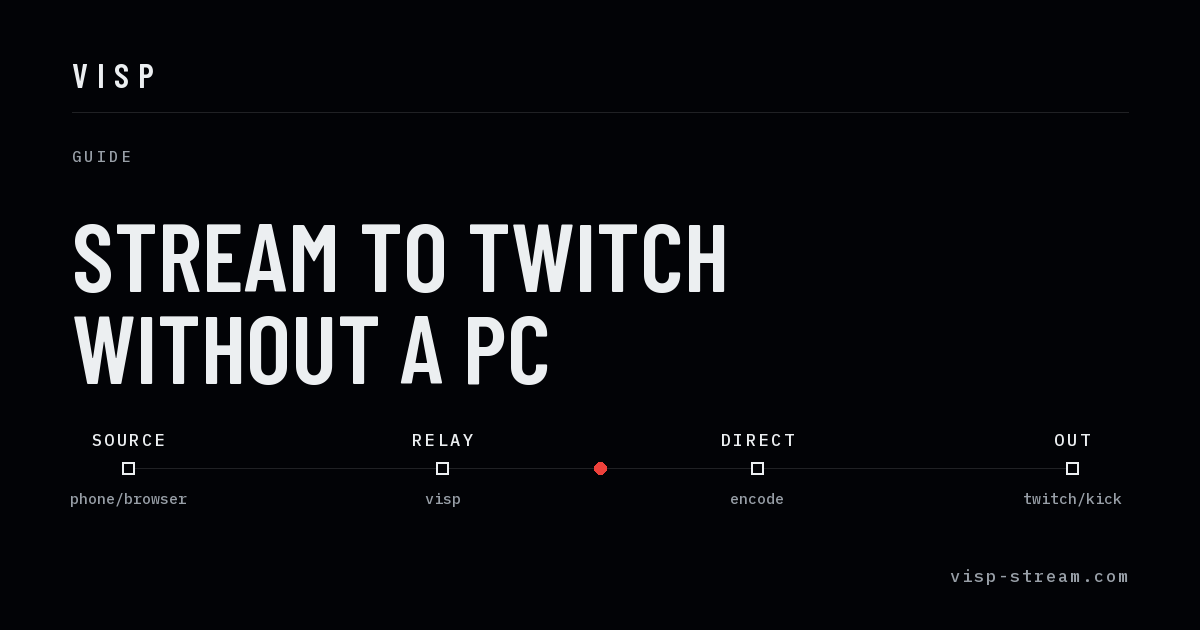
Most IRL streaming guides assume a machine at home. The phone sends a feed to a relay, the relay forwards it to OBS on your desktop, and OBS encodes and pushes to Twitch. That works, but it means a computer has to be powered on, awake, and correctly configured for the entire time you are outside — and if it crashes, you find out from chat.
You do not need it. With a relay that encodes for the platform itself, the chain is phone → relay → Twitch, and the desk at home stays dark.
What "no PC" actually requires
Something between your phone and Twitch has to produce a platform-ready H.264 and AAC stream. There are exactly three places that can happen:
- On the phone. Apps that broadcast straight to Twitch do this. Simple, but the phone carries your stream key, and the phone's encoder is doing double duty with the camera and the radios.
- In a cloud OBS. Services like IRLToolkit and Streamable.run run OBS on a server for you, from $120–180 a month. You get scenes and overlays with it.
- In the relay itself. The phone sends one contribution feed; the relay decodes it and creates a separate distribution encode per platform. This is what VISP calls Direct, and it is what this guide uses.
The third option is the cheapest way to get the home computer out of the picture, because you are not paying to rent an OBS you were not going to use.
Setting it up
Three steps, and none of them involve a stream key.
1. Authorize the destination
Sign in and connect Twitch, Kick, or YouTube once. VISP stores the destination, not a key you carry around. You can connect more than one account and choose where to send at the moment you go live.
This matters more than it sounds. VISP resolves the authorized platform credentials on the server while the output starts, and never returns them to the publishing device. A lost or borrowed phone does not leak your key — which is not true of any workflow where you paste a key into an encoder.
2. Publish from the phone or browser
Open the VISP app on iOS or Android, or the browser publisher on a laptop, and start the feed. See the phone app documentation for camera, bitrate, and network settings.
Before a single frame is accepted, the relay checks three things: that the publisher is authorized, that it owns the destination, and that encoder capacity is actually free. A stream that is going to fail fails at the start, while you can still do something about it, rather than ten minutes into a broadcast.
3. Go live
The relay encodes and sends to the platform. Nothing else has to be running.
What you give up
Leaving OBS out of the path costs you real things, and you should know them before you rely on this:
- Scenes, overlays, and alerts. There is no compositor in this chain. A chat overlay, a starting-soon screen, or a sponsor bug needs OBS somewhere.
- Local recording. No OBS means no local high-quality capture of your show.
- Multi-camera cuts. You can hand off between devices — the newest offline device takes ownership when it goes live — but that is a handoff, not a vision mix.
- Bandwidth aggregation. The native app can duplicate packets across Wi-Fi and cellular so one link dropping does not kill the stream. It does not aggregate them. For true bonding, see VISP vs BELABOX vs LiveU Solo.
Adding OBS back later, for the sessions that need it
The useful part of this arrangement is that it is not a one-way door. The same contribution feed can be read in OBS as a media source, at any time, without touching the platform encode that is already running. So a normal week can look like:
- Tuesday walk-and-talk: phone straight out, no computer.
- Saturday show with graphics and a second camera: same phone, same relay, but OBS at home reads the feed and builds the production.
Setup for the second case is the phone as a remote camera in OBS guide, and you can drive OBS from your phone without opening a port using the OBS remote control plugin.
Cost
Free during the VISP beta. The cloud OBS services that also remove the home computer run $120–180 a month, and a fuller breakdown of who should pay that is in IRLToolkit alternatives.
Preparing the phone for a longer stream
Removing the PC does not remove the ordinary limits of a mobile broadcast. Test the selected resolution and bitrate on the route you will actually use. A speed test taken while stationary can miss cell handoffs, crowded areas, and indoor dead zones. Start conservatively and leave upload headroom instead of setting the encoder to the fastest result you saw once.
Power and temperature matter together. A power bank extends runtime, but charging also creates heat. Keep the phone out of direct sun, remove a case if it traps heat, and avoid maximum screen brightness when it is unnecessary. If the phone begins throttling, lowering resolution or frame rate is more useful than attaching an even larger battery. See the overheating guide for a repeatable test.
Check audio with headphones before going public. Confirm which microphone the app selected after connecting a headset or wireless receiver. Make a short recording while walking in the same wind and traffic expected during the stream. Viewers will accept a temporary soft picture; unintelligible speech usually makes them leave.
What happens when the connection drops
A relay cannot create bandwidth where none exists. If the phone loses every usable route, new video stops arriving. VISP can duplicate packets across Wi-Fi and cellular in the native app, allowing either path to deliver the same stream, but duplication is not aggregation. The full bitrate must fit through each path.
Tune the stream before buying more networking equipment. Lower the bitrate, test 720p instead of 1080p, and compare carriers along the real route. If no single connection can sustain the required quality, a bonded encoder or service is the appropriate next step. Our bad-network guide explains how to distinguish encoder overload, relay trouble, and field upload loss.
Plan a visible fallback as well. Tell viewers how long you will try to reconnect, keep chat accessible on another device if possible, and have a moderator post an update. A no-PC stream has fewer machines to monitor, but it still benefits from a simple failure plan.
A preflight checklist
Before leaving, verify all of the following:
- The correct platform account is authorized and selected.
- The phone is charged, has enough storage, and will not auto-lock.
- The camera, orientation, bitrate, and microphone are correct.
- Notifications and calls will not expose private information on stream.
- The power cable has strain relief and does not block the grip.
- A short test reaches the intended platform with audible, synchronized sound.
Run the first session as a short, low-stakes broadcast. Watch the platform copy afterward and note the weakest part of the chain. The no-PC workflow is valuable because it starts with very few components; preserve that advantage by adding equipment or services only for failures you can name.
Tuo kenttä osaksi OBS-studiotasi
Kokeile VISPiä ilmaiseksi betan ajan. Lähetysavainta ei tarvitse liittää mihinkään.
Kokeile VISPiä ilmaiseksi